 |
Radical Pie Equation Editor |
If you have Microsoft PowerPoint on your computer, then the Radical Pie installer adds one icon to the right end of the Insert tab in the Microsoft PowerPoint ribbon interface, as shown below.
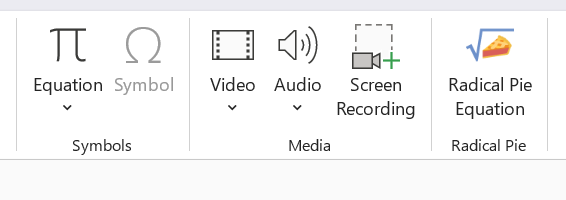
Use the Radical Pie Equation button (shown to the right) to insert a new equation on the current slide. When you do this, a new Radical Pie window will open with a blank equation, and the base font size will be initialized to the font size specified for body level 1 text in the layout master used by the current slide in the PowerPoint presentation.
After you’ve made some edits, you can save your equation inside Radical Pie by typing Ctrl+S or choosing Save from the File menu. Whenever an equation is saved, its contents are automatically updated inside the PowerPoint presentation. When you are finished writing an equation, the Radical Pie window can be closed by typing Ctrl+W, choosing Close from the File menu, or clicking the close box in the upper-right corner. It’s typical to enter an equation in Radical Pie and then type Ctrl+S followed by Ctrl+W to save it and return to the PowerPoint presentation.
(The Equation button shown to the left of the Radical Pie icons inserts a legacy equation using Word’s built-in Office Math equation editor. This is not part of Radical Pie.)
To edit an equation that already exists in a PowerPoint presentation, simply double-click on it to open a Radical Pie window containing the equation. After edits have been made, save the equation and close the window using Ctrl+S followed by Ctrl+W as you would with a new equation.
If you make edits to an equation and attempt to close the Radical Pie window without saving, you will be asked whether you want to save it. Choosing Don’t Save will discard any edits you’ve made, and the equation will not be updated in the PowerPoint presentation.
PowerPoint does not have the built-in ability to assign keyboard shortcuts like Word does. In order to insert a new Radical Pie equation with the keyboard, the Radical Pie Equation button needs to be added to the Quick Access Toolbar, where items can be activated with the Alt key plus a number key. To add the Radical Pie Equation button to the Quick Access Toolbar, right-click on it and select Add to Quick Access Toolbar. If the Quick Access Toolbar is not visible, then select Show Quick Access Toolbar from the same right-click menu.
Items in the Quick Access Toolbar are activated by typing Alt+1, Alt+2, etc., where the number corresponds to the left-to-right position of the item starting with 1. The Quick Access Toolbar has five items in it by default, so adding the Radical Pie Equation button makes it the sixth item if no other changes were made, and thus typing Alt+6 would insert a new equation object.
Due to longstanding problems in PowerPoint, Radical Pie is unable to update the design or font size for multiple selected equations at once as it can in Word. To update the design or font size for a single equation, right-click on the equation object and select either Update Design or Update Font Size from the submenu under the Radical Pie Equation Object item.
As in Word, the Update Design command applies the current user default design to the equation. The Update Font Size updates the base font size of the equation to font size specified for body level 1 text in the layout master used by the slide containing the equation.
Radical Pie can automatically set the alternative text for each equation embedded in a PowerPoint presentation to its corresponding TEX code. To enable this, check the Generate alternative text box in the Editor Configuration dialog. Once it’s enabled, to add alternative to existing equations that didn’t previously have it, you can simply open and save the equation without doing anything else.
The Aptos font, which is currently the default font in Microsoft PowerPoint, isn’t actually installed on your computer like an ordinary font. Instead, it’s cached as a “cloud font” and stored in a special location, and this makes it difficult for other applications to use it. To use the Aptos font with Radical Pie, download the TrueType files from the following location and install them. After unzipping the downloaded package, select all the font files you want to install, right-click on one of them, and choose Install from the popup menu.
https://www.microsoft.com/en-us/download/details.aspx?id=106087
There are several known bugs in PowerPoint that prevent OLE integration from working as smoothly as it does in Word. Some of these bugs have prevented us from adding the Update Design and Update Font Size buttons to the Insert tab, and there is one more bug that causes some equation objects to collapse down to a very small size at various times. If you see this happen, please don’t panic because your equations have not been lost. They’re still in your presentation, but they just aren’t being displayed correctly. The collapse most often happens when you save your PowerPoint presentation, and one or more equations on the current slide collapse to 0.1 × 0.07 inches. When the presentation is closed and reopened, the equations will usually be restored to their correct sizes. To increase the chances of avoiding the collapse, change to a slide that does not contain any equations before saving. If they aren’t restored, then you will need to zoom in on each collapsed equation, double-click it to open in Radical Pie, and then just save it. Unfortunately, we don’t have any control over this because it’s a bug in Microsoft’s code.